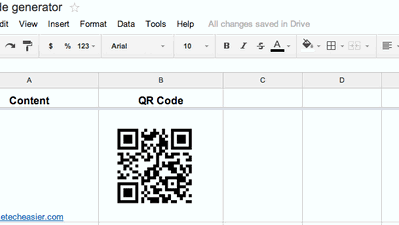
We have shown you several ways to create QR code, and most of them require you to visit a website or download a software. For Google Documents (aka. Google Drive) user, here is a quick way you can create QR code.
1. Create a new Spreadsheet in Google Drive.
2. In Column A, enter the content that you want to embed in the QR code. It can be a URL, a word, sentence, or paragraph, a contact number.
3. In the respective cell in Column B, paste in the following forumla:
=image("https://chart.googleapis.com/chart?chs=150x150&cht=qr&chl=" & A1)You can change the 150×150 value to set the QR code size. Also, change the “A1” value to the cell where it will grab the content to embed.
This is what you will see:
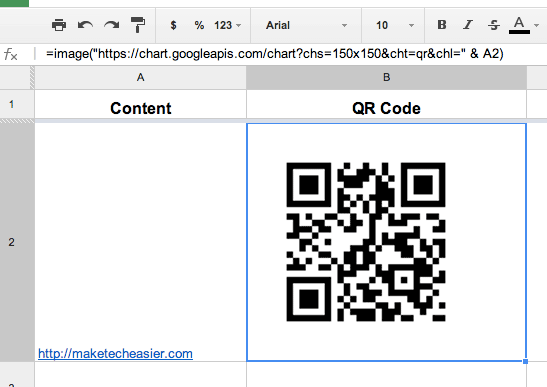
From here, you can take a screenshot of your desktop to save the QR code.
Also read: How to Scan QR Codes From an Image on Mobile
![How to Compose A New Email Directly From Your Browser [Quick Tips]](https://img.gamelinxhub.com/images/mailto-featured-cropped.jpg?width=400&height=225&aspect_ratio=16:9)