Google Chrome has been blessed with a number of extensions that help expand the capabilities of one of the most used web browsers in the world. If you have taken a look at the Chrome Store, you know that there is an extension for almost anything you want to do with your browser. From download managers to DLNA controllers, Chrome has everything for you. Despite this, some useful extensions have not been able to make it to the store, and hence cannot be used by users like you and me. But wait, there is now a way for you to install extensions available outside the store in Chrome. Here’s how:
Note: Some extensions are not available in the Chrome store for security reasons. Before you bypass the Chrome store and install an extension manually, make sure that the extension you are installing is free of virus/malware.
In the example below, I will be installing an extension called “Google Stars” that is NOT available in the Chrome store. The procedure is the same for any extension you wish to install. All you need to have is the .crx file of the extension.
Also read: 7 of the Best Chrome Extensions You Need to Try
Manually Installing an Extension in Chrome
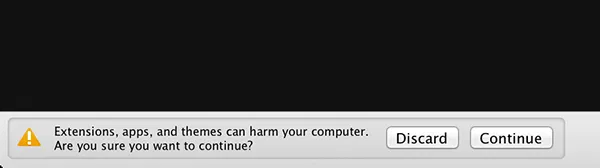
1. Download the extension (.crx file) you want to install on your computer. Click on “Continue” when Chrome prompts you. It will then be downloaded to your computer.
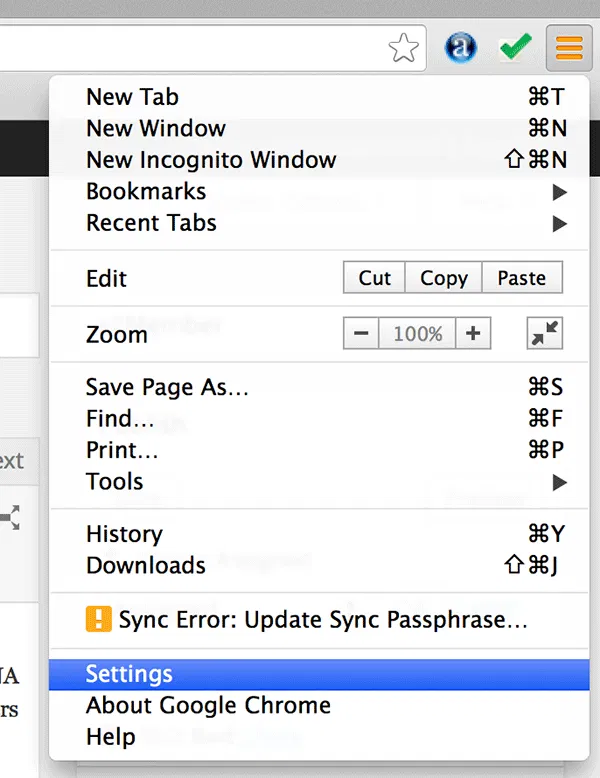
2. Click on the three lines shown on the top-right corner in your browser, which will open a menu for you. Click on “Settings.” You will be redirected to your browser’s settings page.
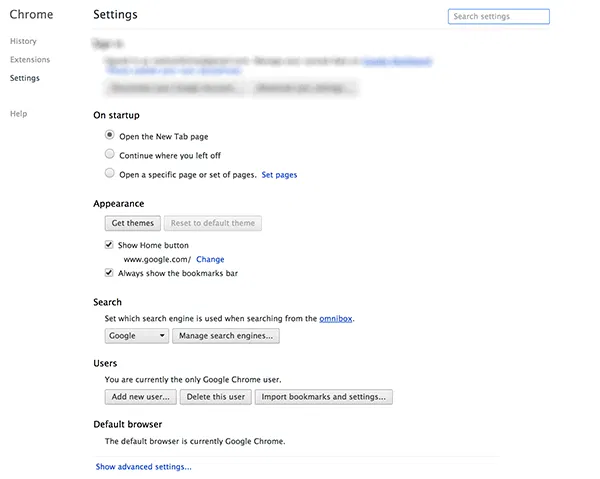
3. Once on the Settings page, click on the “Extensions” link given in the left-hand side of your screen. It will take you to the extensions page that shows all the extensions you have installed in your browser.
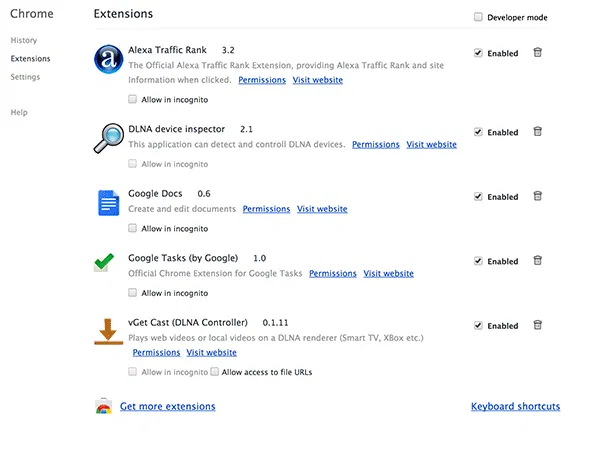
4. On the extensions page, you should see a checkbox on the top saying “Developer mode.” Click on it.
5. Drag the .crx file and drop it onto the extensions page.
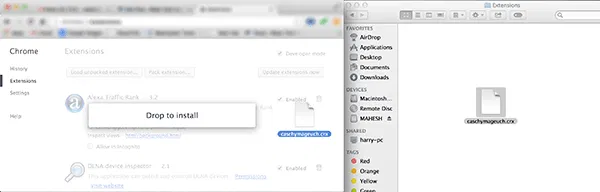
6. Once you have dropped the file, it will ask if you want to add the extension to your browser. Click on “Add” to manually install the extension.
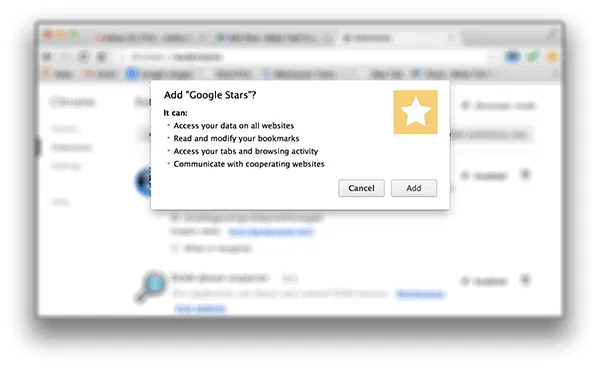
7. When Chrome has finished installing the extension, you will see something like the following. It indicates the extension was successfully installed.
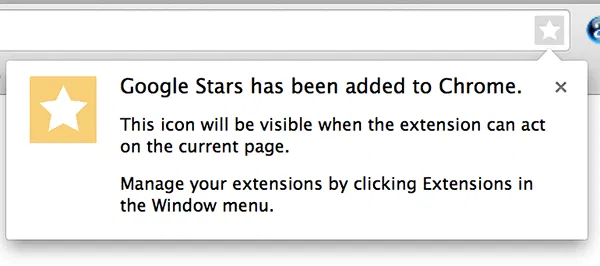
That’s it.
You have successfully sideloaded an extension in your Chrome that was unavailable in the official Chrome store. This way, you can add as many extensions in your Chrome as you want; just make sure you know what you are going to install so as to avoid any issues down the road.
Conclusion
Having the ability to manually install an extension lets you try out some of the extensions that are either in testing mode or have not been able to make their way to the official store, obviously for some reasons known only by the developer.